

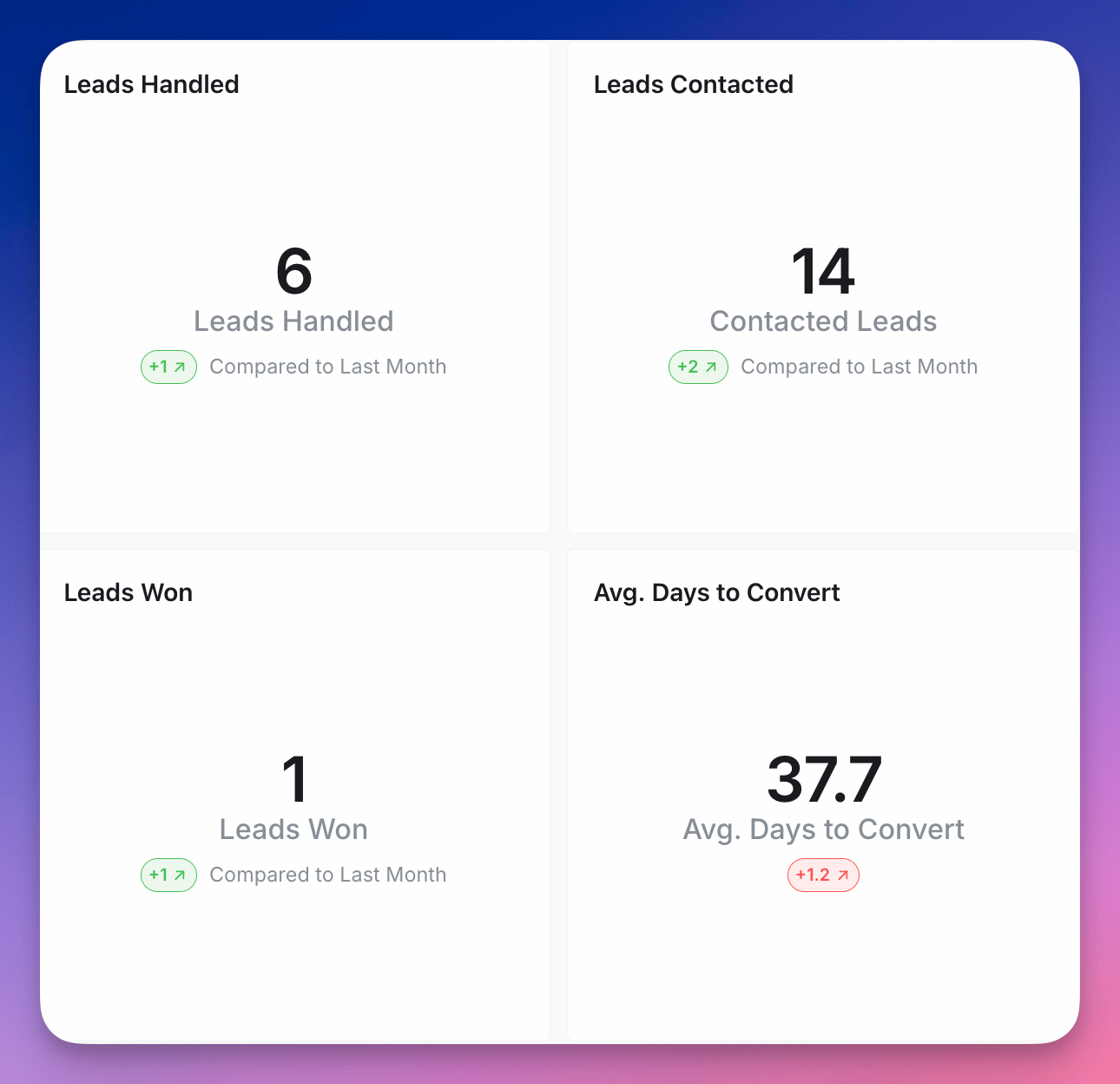
- Selecting which field you want to use for your Big value.
- Updating the label below the Big value value.
- Adding a comparison to the previous row
- Show raw value or percentage change
- Show red or green for positive or negative change
- Label your comparison value
- Adding conditional formatting rules to change the color of the big value based on conditions.
Compact style
Numeric big values can be shortened using the Compact dropdown in the chart configuration panel. In addition to fixed styles (thousands, millions, billions, trillions), you can pick Auto (K, M, B, T) to let Lightdash choose the suffix based on the value’s magnitude — so1,500 renders as 1.50K and 2,300,000 renders as 2.30M without having to reconfigure the tile when the underlying value changes scale.
The Auto option is available for number and currency fields.
Referencing the active granularity in labels
The label and comparison label support a${table_field.granularity} placeholder that resolves to the active date granularity (for example day, week, month) — including the granularity selected via date zoom. Type $ in the label field to see an autocomplete list of the available date dimensions on the chart. See Referencing the granularity in chart labels for the full syntax and supported labels.
Conditional formatting
You can apply conditional formatting to your big value to change its color based on specific conditions. To set up conditional formatting, go to the Configure tab, then select Conditional formatting.Adding a rule
Click the + Add button to add a new rule. Each rule lets you:- Choose a color for light mode and dark mode separately.
- Define one or more conditions that determine when the color is applied.
Conditions
Each condition uses an operator and a value to compare against the big value. The available operators depend on the type of field you’re displaying:- Numeric fields support standard comparison operators (e.g., greater than, less than, equal to, between).
- String dimensions support
equals,not equals, andincludes.